SketchUp Cut List Generator

Export your SketchUp model and get optimized cutting layouts. No plugins required.

Generate Cut List

The Easy Way to Get Cut Lists from SketchUp

SketchUp is the go-to tool for woodworkers planning furniture and cabinet projects. But getting an accurate, optimized cut list has always been a challenge - until now.

CutCalc lets you export your SketchUp model as an OBJ file and instantly generates optimized cutting layouts. No plugins to install, no subscriptions, no complicated setup.
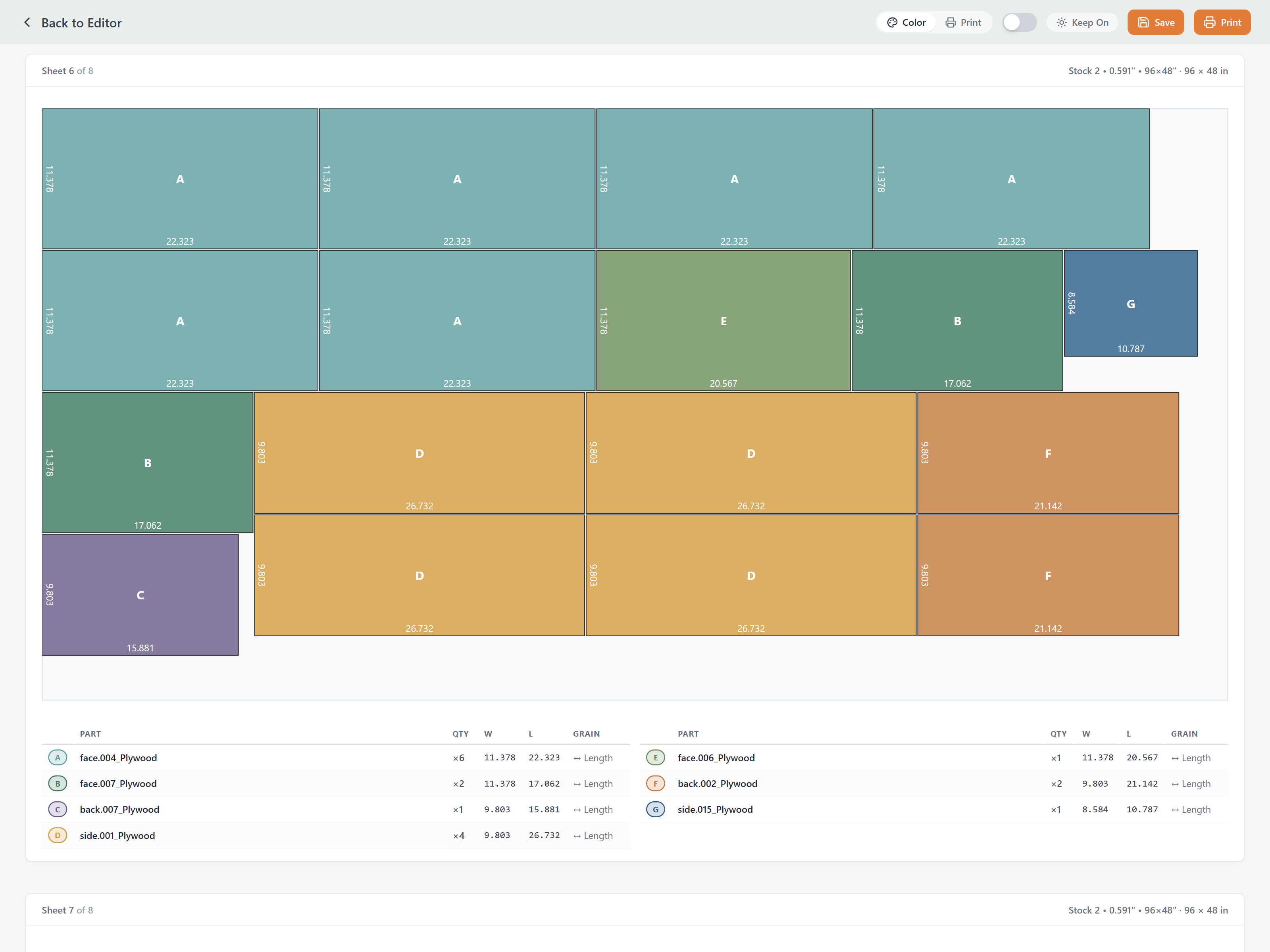
CutCalc optimized cutting layout from SketchUp model
Optimized cutting layouts generated from your SketchUp model

No Plugin Needed

Works with SketchUp's built-in OBJ export. No Extension Warehouse required.

Works with Free Version

SketchUp Free (web) can export OBJ. No Pro license required.

Visual Cut Diagrams

See exactly where each part goes on your plywood sheets.

Instant Results

Get your cut list in seconds, not minutes of manual work.
How to Export from SketchUp

1

Open your SketchUp model

Make sure all components you want in the cut list are visible. Hide any reference geometry.

2

Export as OBJ

SketchUp Pro/Shop: Go to File → Export → 3D Model and select OBJ format.

SketchUp Free (web): Click the folder icon → Export → OBJ.

3

Import to CutCalc

Open CutCalc and drag your OBJ file onto the page, or click to browse and select it.

4

Configure and generate

Set your sheet size, blade kerf, and any other options. Click generate to get your optimized cutting layout.

Pro Tip: In SketchUp, make each part a separate component (not just a group). Components export more reliably and their names will appear in your cut list.

CutCalc vs. SketchUp CutList Plugins

Feature CutCalc Traditional Plugins
Installation required No - web based Yes - Extension Warehouse
Works with SketchUp Free Yes No - Pro only
Visual cutting diagrams Yes - optimized layouts Varies by plugin
Waste optimization Advanced algorithms Basic or none
Price Free Free to $100+
Works offline Yes - runs in browser Yes

SketchUp Modeling Tips for Better Cut Lists

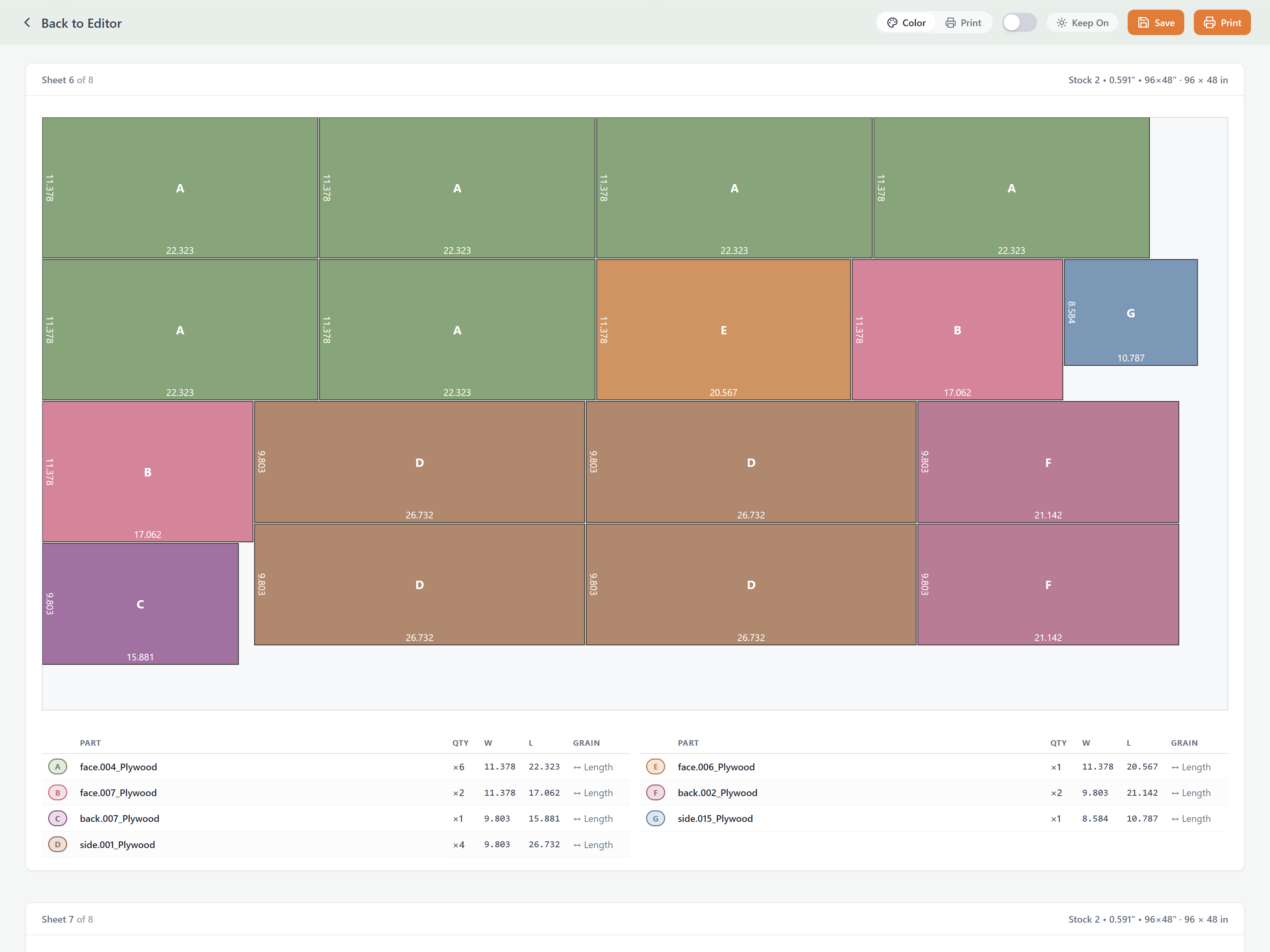
CutCalc sheet layout diagram
Clear, labeled cutting diagrams for the workshop

Popular SketchUp Woodworking Projects

CutCalc works great for cut lists from these common SketchUp projects:

Kitchen Cabinets

Base cabinets, wall cabinets, pantries - get accurate plywood counts for your whole kitchen.

Built-in Shelving

Bookcases, entertainment centers, closet organizers with multiple shelf sizes.

Furniture

Desks, tables, bed frames, dressers - any project with sheet good parts.

Shop Projects

Workbenches, tool storage, assembly tables designed in SketchUp.

From SketchUp to the Shop

Stop manually measuring your models. Get cut lists in seconds.

Import Your SketchUp Model