Export your Fusion 360 furniture design and get an optimized plywood cut list in seconds.
Generate Cut ListFusion 360 is an incredible tool for designing furniture and woodworking projects. But when it's time to actually build, you need to know how to efficiently cut your sheet goods.
CutCalc imports your Fusion 360 models directly and generates optimized cutting layouts - showing you exactly how many sheets you need and where to make each cut.
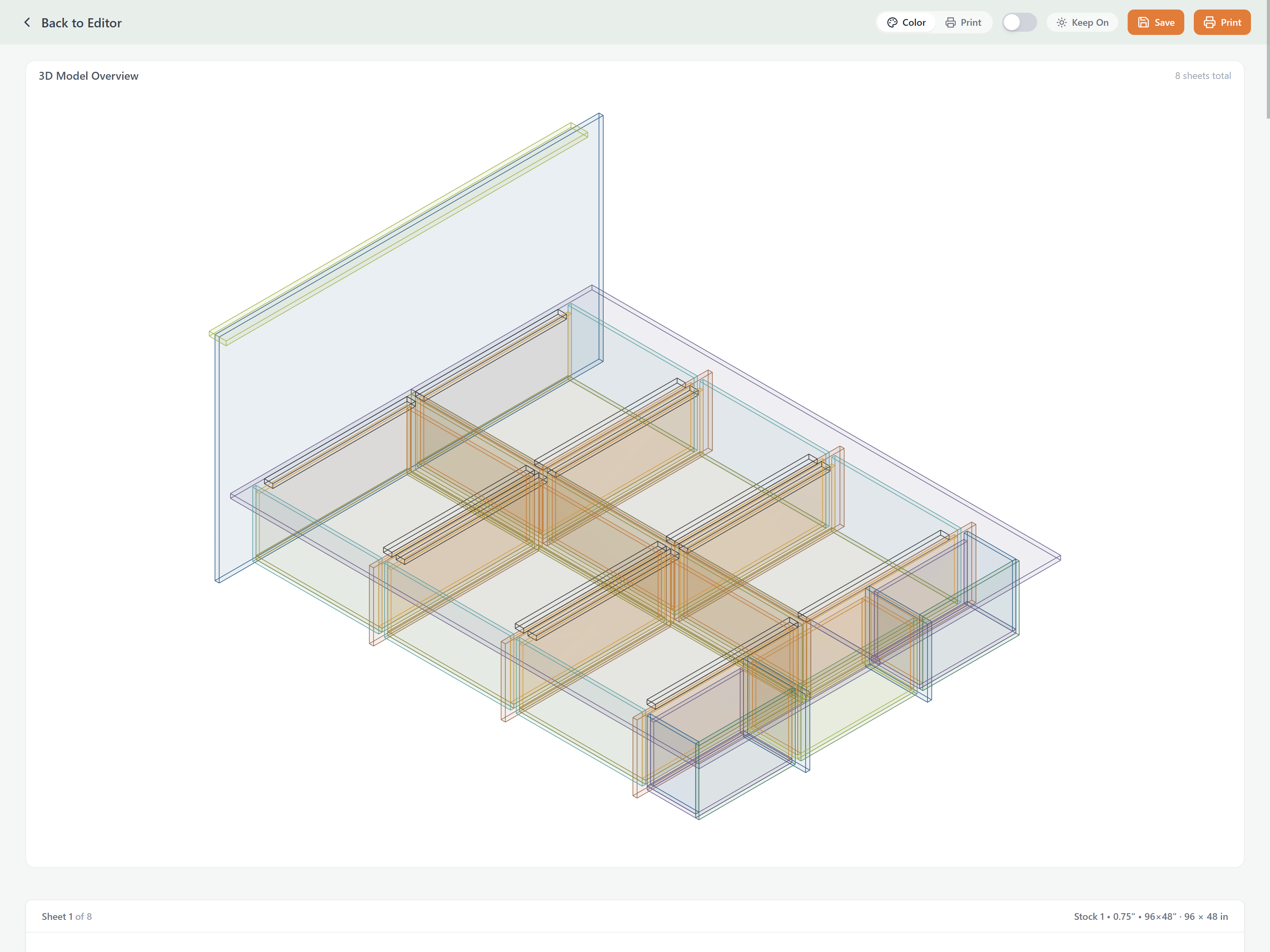
Export from Fusion 360 as OBJ, import to CutCalc. Parts are detected automatically.
Component names from Fusion carry through to your cut list for easy reference.
Parts are extracted at the exact dimensions from your model - no manual measuring.
Advanced nesting algorithms minimize plywood waste and save you money.
Make sure all the components you want in your cut list are visible. Hide any construction geometry or reference parts.
In the browser tree, select the components you want to include. You can Ctrl+click to select multiple, or select the top-level component to export everything.
Go to File → Export. In the dialog, select OBJ Files (*.obj) as the file type. Choose a location and click Export.
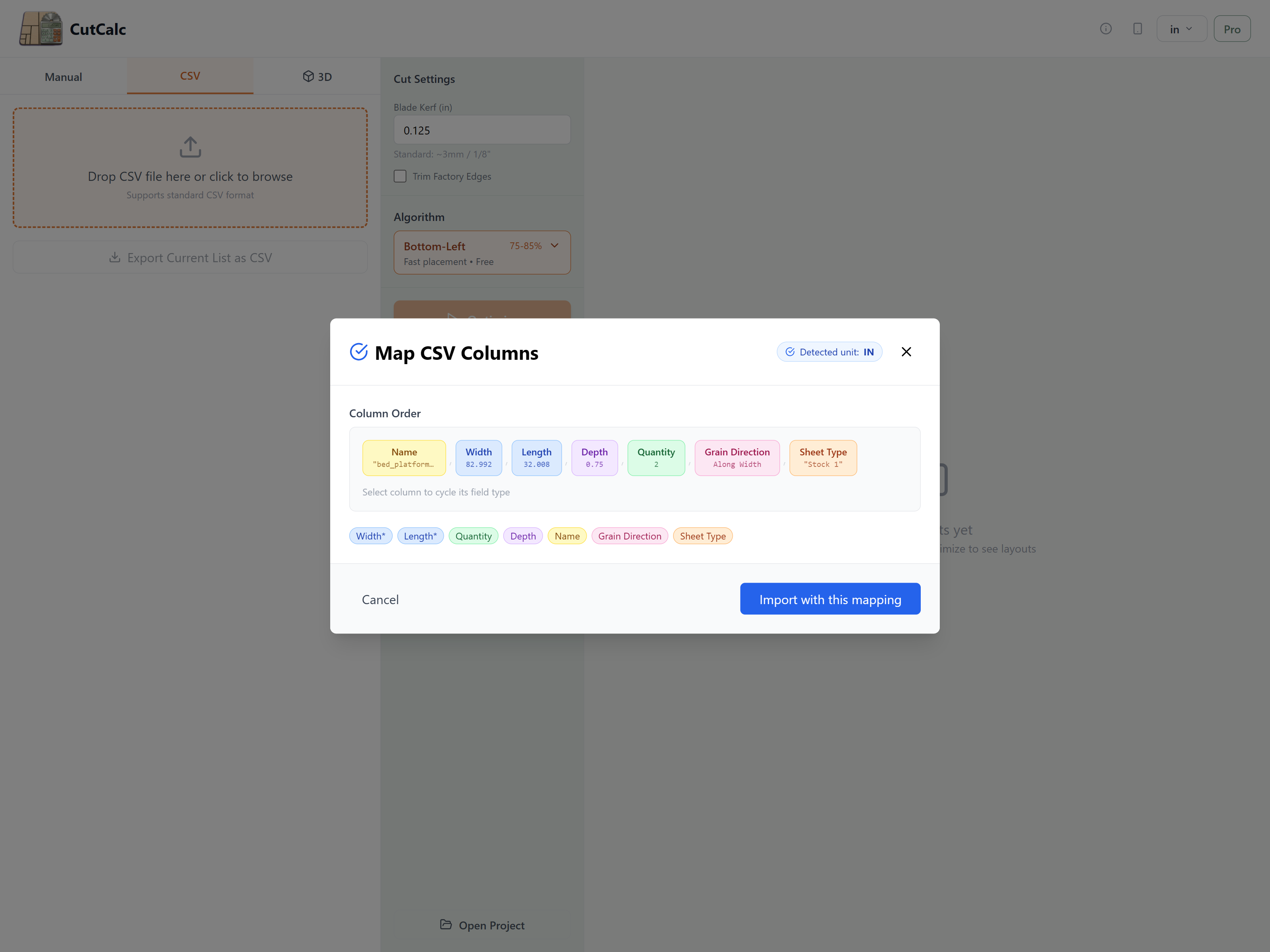
Open CutCalc and drag your OBJ file onto the import area, or click to browse. Your parts will be extracted automatically.
Verify the detected parts, set your sheet size and blade kerf, then generate your optimized cutting layout.
Many woodworkers use Fusion 360 for:
CutCalc fits into this workflow by handling the material planning step - so you can focus on design, not spreadsheets.
Stop clicking on every face in Fusion to get dimensions. Export once, import once, done.
Changed your design? Re-export and re-import in seconds to get an updated cut list.
No transcription errors between your model and your cut list. What you designed is what you cut.
Know exactly how many sheets to buy before you drive to the lumber yard.
Get your optimized cut list in seconds - not hours.
Import Your Fusion 360 Model